
11.5 Making a Table
The table feature gives us a convenient tool for evaluating expressions. There are two steps to making a table:
- Entering the equation
- Setting the Table features
Using the Auto Option
If we want a table with evenly spaced -values, we use the Automatic setting.
-
Press
Y=, clear any previous entries, and enter the expression or expressions you want to evaluate. -
Press
2ndWINDOW(TBLSET) to access the Table Setup menu. Enter the first -value after TblStart, and the -increment after . Highlight Auto for both the Independent and Dependent variables. -
Finally, press
2ndGRAPH(TABLE) to see the table. You can use the arrows to scroll up and down the table. Figure shows the Table Setup and the resulting table for .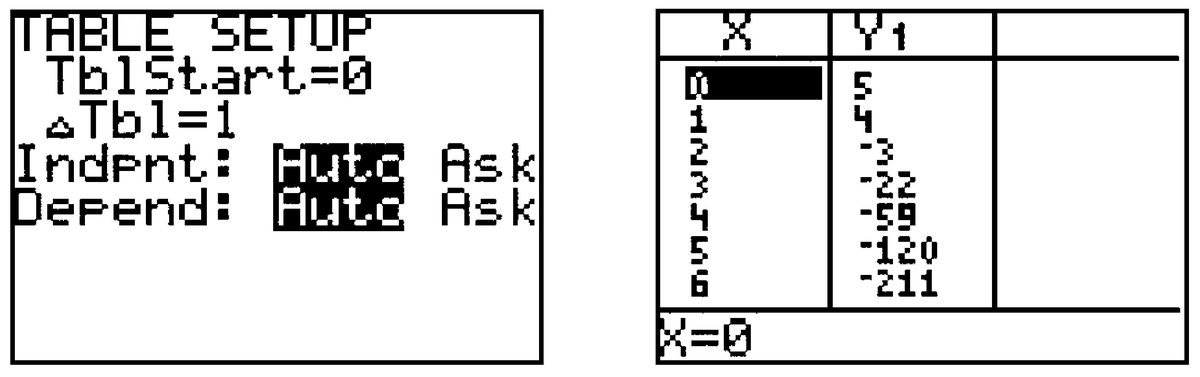
Using the Ask Option
If we want to choose specific -values for the table, we proceed as above but choose Ask instead of Auto for the Independent variable. Press 2nd GRAPH to see the table, then enter the -values, pressing ENTER after each one.
Troubleshooting
- If the table shows ERROR for a -value, the expression you entered is undefined at the corresponding -value.
-
If the table shows only -values, no equation is activated. Press
Y=to enter or activate an equation.
Modeling, Functions, and Graphs by Katherine Yoshiwara (yoshiwarabooks.org), GNU Free Documentation License 1.2 or later. Adapted for the XYZ HTML edition with the authors' permission (recorded 2026-07-04). License: GFDL-1.2-or-later.