Order of Operations: The calculator follows the standard order of operations.
Fractions
Exponents and Powers
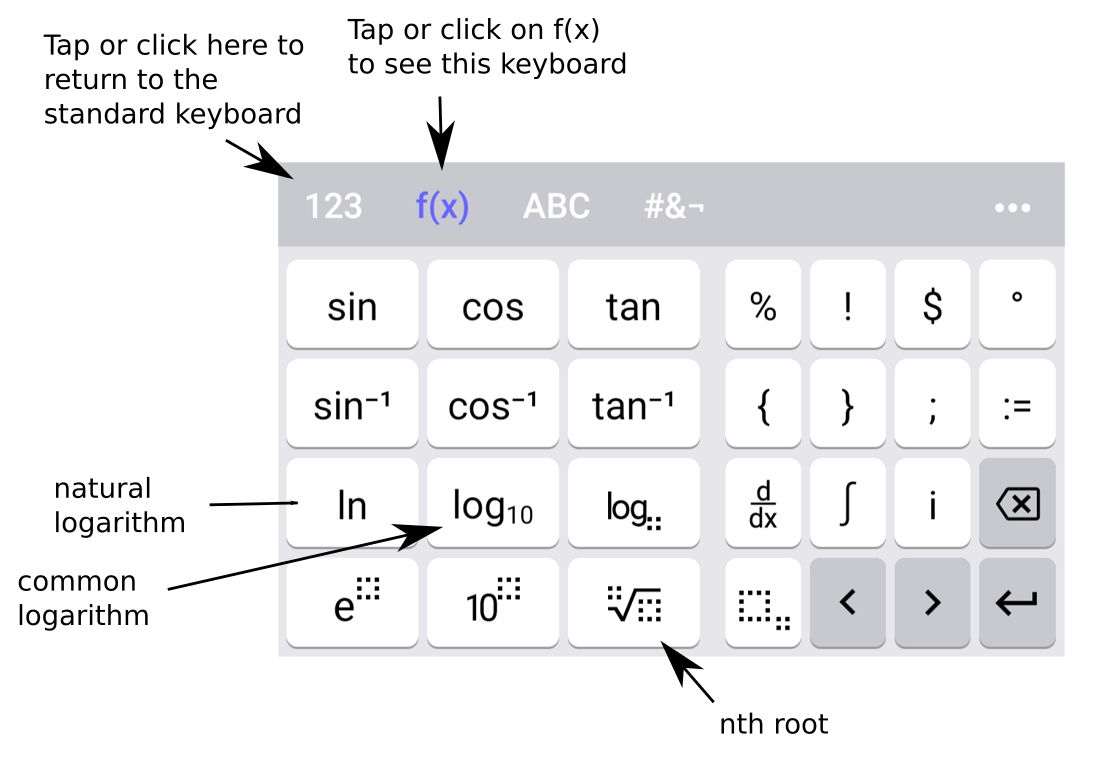
The key for exponents and the key for squaring are shown in the keyboard image.
Square Roots
The key for square roots is shown in the keyboard image.
Other Roots
If we click on the "f(x)" on the keyboard in the Algebra View, we see other built-in keys.
GeoGebra calculator f(x) keyboard
Absolute Value
GeoGebra nicely displays the vertical bars of the standard absolute value notation, such as in the expression . Once we select the absolute value key, the cursor is in between the vertical bars and will stay there until we use the arrow keys to move the cursor outside, or until we press Enter. The arrow keys on the virtual keyboard are shown in the keyboard image.
Scientific Notation
The GeoGebra calculator does not display scientific notation by default. The calculator can display scientific notation in the Grahics View by using a ScientificText command.
Editing an Entry
We can edit an expression without starting again. The backspace key will remove the character to the left of the cursor. We can move the cursor within an input line using the arrow keys or by clicking in the appropriate place.
We can recall any previous entry by finding it in the output history (scrolling up if necessary), tapping on the kebab menu icon (three vertical dots), and selecting Duplicate. The command will be copied into the current input box, which we can edit before pressing Enter.
If we just want to use the most recent result in the current command, we use the ans key.
Modeling, Functions, and Graphs by Katherine Yoshiwara (yoshiwarabooks.org), GNU Free Documentation License 1.2 or later. Adapted for the XYZ HTML edition with the authors' permission (recorded 2026-07-04). License: GFDL-1.2-or-later.
These eBooks are a prerelease and are not yet certified conformant with WCAG 2.1 AA or any other accessibility standard. Every page is built against an automated accessibility gate, and our target for the published editions is WCAG 2.2 Level AA. If something is unusable, please tell us.